Top Screen Recorder for 2026: Best Tools for Every Need
Screen recording has become essential for educators, content creators, developers, and remote workers alike. Whether you're creating tutorials, documenting software bugs, or sharing quick screen shares with colleagues, having the right tool makes all the difference.
In this guide, we’ve carefully evaluated the top screen recording software of 2026 based on performance, user-friendliness, feature set, and platform support. We tested tools across Windows, macOS, and Linux to ensure broad compatibility and real-world usability.
How We Chose the Best Screen Recording Software for 2026
We assessed each screen recorder using a combination of technical benchmarks and hands-on usage. Our team prioritized tools that offer both free and premium tiers with clear value propositions.
Key Evaluation Criteria
- Recording quality and format support (MP4, MOV, AVI)
- Ease of installation and user interface design
- Advanced features like webcam overlay, annotation tools, and audio recording
- System resource usage during recording
- Cross-platform compatibility and mobile app support
Quick Picks: Top Screen Recorders for 2026
Here are the top screen recording tools we recommend based on our 2026 testing:
- OBS Studio , Best Free Screen Capture Tool
- Camtasia , Best Overall for Creative Professionals
- Loom , Best for Quick Sharing and Collaboration
- Snagit , Best for Simple, User-Friendly Recording
- CapCut , Best for Video Editing Integration
Why These Tools Made the List
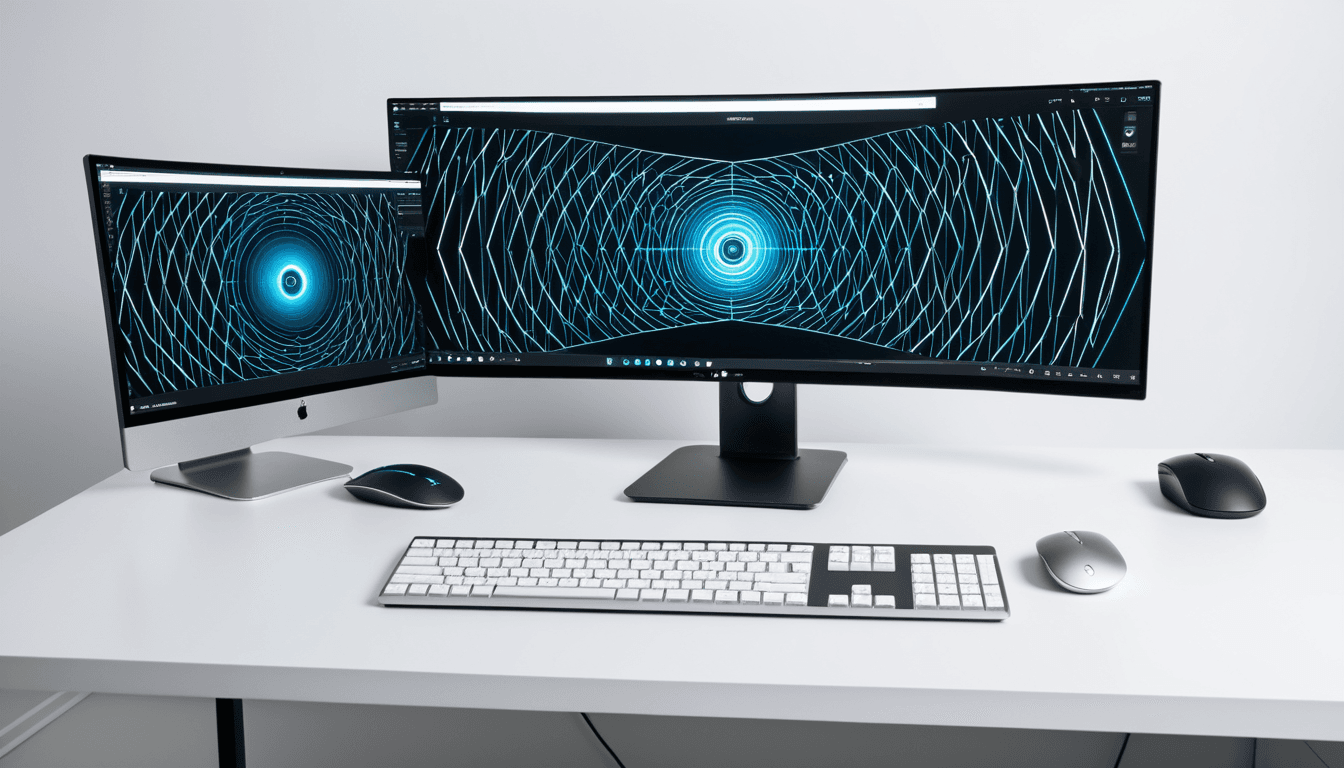
Each tool was selected based on real-world usability and performance in 2026. We considered both free and premium options to suit different user needs. Tools were rated for their ability to handle high-resolution recordings and multi-monitor setups.
Best Overall Screen Recorder
Camtasia stands out as the most complete screen recorder for professionals. It offers a robust set of editing tools, making it ideal for tutorials and training videos.
Features That Set Camtasia Apart
- Integrated video editor with transitions, annotations, and effects
- Webcam overlay and audio mixing capabilities
- Cloud sharing and collaboration features
"Camtasia’s seamless integration between recording and editing makes it a powerful tool for educators and content creators who want to produce polished videos without switching apps."
User Experience and Performance
- Intuitive interface suitable for beginners and pros alike
- Smooth performance even on lower-end hardware
- Supports recording of multiple monitors simultaneously
Best Free Screen Capture Tool
OBS Studio is the go-to free option for advanced users. It’s open-source, highly customizable, and supports streaming and recording.
Why OBS Studio Wins in the Free Space
- No watermark or time limits on recordings
- Customizable settings for advanced users
- Supports multiple audio and video sources
Limitations to Consider
- Steeper learning curve for beginners
- Requires manual setup for optimal performance
- No built-in editing tools
Best for Quick Sharing and Collaboration
Loom is perfect for remote teams and educators. It allows fast screen sharing with real-time collaboration features.
Collaboration Features
- Easy video sharing via link or email
- Built-in commenting and annotation tools
- Integration with Slack, Google Workspace, and Microsoft Teams
Ease of Use for Non-Technical Users
- Simple one-click recording interface
- No installation required for basic features
- Mobile app support for on-the-go recording
Best for Simple, User-Friendly Recording
Snagit is ideal for quick screen captures and short videos. It’s lightweight and easy to use with minimal setup.
User-Friendly Design
- Intuitive drag-and-drop interface
- Pre-built templates for common screen capture tasks
- Instant upload and sharing options
Limitations in Advanced Features
- Limited editing capabilities compared to other tools
- No webcam recording without external software
- Not ideal for long or complex recordings
Best for Video Editing Integration
CapCut offers seamless integration with its video editing suite. It’s great for creators who want to record and edit in one place.
Editing Capabilities
- Built-in effects, transitions, and text overlays
- Support for multi-track editing and audio adjustments
- Cloud-based project saving and collaboration
Mobile-Friendly Features
- Works across desktop and mobile platforms
- Export options for social media and web
- Templates tailored for TikTok, YouTube Shorts, etc.
Screen Recording Software Comparison Table
| Tool | Pricing | Recording Quality | Platform Support | Editing Tools | Webcam Support |
|---|---|---|---|---|---|
| Camtasia | Paid ($299/year) | 4K+ | Windows, macOS | Yes (Advanced) | ✅ |
| OBS Studio | Free | Up to 4K | Windows, macOS, Linux | ||
| - ❌ | |||||
| - ✅ | |||||
| Loom | Free/Paid | Up to 1080p | Web, Mobile | ||
| - ❌ | |||||
| - ✅ | |||||
| Snagit | Paid (One-time) | Up to 1080p | Windows, macOS | ||
| - ❌ | |||||
| - ❌ | |||||
| CapCut | Free/Paid | Up to 4K | Web, Mobile, Desktop | ||
| - ✅ (Basic) | |||||
| - ✅ |
Features at a Glance
- Recording formats supported: MP4, MOV, AVI
- Audio input options: Microphone, system sound
- Webcam integration: Yes (varies by tool)
- Editing tools included: Varies by tool
- Mobile app availability: Loom, CapCut, Snagit
Who Should Choose Which Tool?
Choosing the right screen recorder depends on your goals and technical comfort level.
Target Audience Breakdown
- Educators and trainers , Camtasia or Loom
- Beginners and casual users , Snagit or Loom
- Content creators and YouTubers , CapCut or OBS Studio
- Advanced developers and streamers , OBS Studio
- Remote workers , Loom or Camtasia
FAQs About Screen Recording Software
What is the best free screen recorder?
OBS Studio and Loom are two top free options, each suited for different needs. OBS is ideal for advanced users who need customization, while Loom excels in quick sharing.
Can I record my screen and webcam at the same time?
Most modern tools support dual recording with webcam and screen. Camtasia, Loom, and CapCut all support this feature.
Which screen recorder supports high-resolution output?
Camtasia and CapCut offer high-quality output up to 4K resolution.
Is screen recording software safe to use?
Reputable tools like Camtasia and OBS Studio have no known security issues. Always download from official sources.
How do I improve the quality of my screen recordings?
Use a dedicated microphone and ensure good lighting for improved quality. Tools like Camtasia allow you to adjust audio levels and optimize settings for better results. For optimal audio input, consider investing in a quality podcast microphone.
Final Verdict: The Best Screen Recorder for Every Need
There’s no single best screen recorder, but each tool excels in its niche. Your choice should align with your technical ability, budget, and intended use case. For all-around performance, Camtasia is unmatched. For free tools, OBS Studio leads the pack.
Final Recommendation
✅ Best Overall: Camtasia
✅ Best Free Option: OBS Studio
✅ Best for Sharing: Loom
Choose based on your goals: editing power, ease of use, or collaboration features. Consider upgrading to premium versions for more advanced functionality. Test free trials before committing to a long-term tool.
Disclaimer: This article contains affiliate links. If you make a purchase through these links, we may earn a small commission at no extra cost to you.